Monday, April 23, 2012

SharePoint Global Resource File Locations


Resource files are used to localize a solution by removing hard-coded strings from the code. SharePoint only supports string resources. Although the Resource Editor enables you to add non-string resources, non-string resources do not deploy to the SharePoint.

In SharePoint 2010, global resource files (.resx) are stored in 3 locations;

1.    App_GlobalResources: The App_GlobalResources folder is located in C:\inetpub\wwwroot\wss\VirtualDirectories\<port number>\App_GlobalResources.

2.    Resources folder in the SharePoint root folder: This is the Resources folder in the 14 hive located in C:\Program Files\Common Files\Microsoft Shared\Web Server Extensions\14\Resources.

3.    Config/Resources folder in the 14 hive: This is located in C:\Program Files\Common Files\Microsoft Shared\Web Server Extensions\14\CONFIG\Resources.


Resources files in App_GlobalResources are used when code in an ASPX page or control refers to a resource. The syntax is “<%$Resources:<Resource File Name>, <String ID>%>”

Ex: <asp:Label ID="lblName" runat="server" Text="<%$Resources:MyResources, lblNameText%>" />


Resources files in the Resources folder in the 14 hive are used when referencing resources using the SharePoint object model

Ex: lblName.Text = SPUtility.GetLocalizedString("$Resources:lblNameText", "MyResources", (uint)SPContext.Current.Web.Locale.LCID);


Resources files in the Config/Resources are copied into the App_GlobalResources folder whenever a new web application is created. By adding the .resx files here you will ensure your application will be able to access its global resource files in new web applications.


How to deploy to App_GlobalResources and 14 hive Resources
Usually, a single .resx file in our solution should be copied into each of the above locations during the installation. We can omit the 3rd location if we are going to deal with only one web application.


Here I’m having three resource files added into a SharePoint Element. Now get the “SharePointProjectItem.spdata” file of the SP Element by selecting “Show All Files” button at the top of the solution explorer.  Then change the file content as below. Please note that there are two entries per each resource file specifying different Type and Target. That’s it. Deploy this element using a SP Feature.

<?xml version="1.0" encoding="utf-8"?>
<ProjectItem Type="Microsoft.VisualStudio.SharePoint.GenericElement" DefaultFile="Elements.xml" SupportedTrustLevels="All" SupportedDeploymentScopes="Web, Site, WebApplication, Farm, Package" xmlns="http://schemas.microsoft.com/VisualStudio/2010/SharePointTools/SharePointProjectItemModel">
  <Files>
    <ProjectItemFile Source="Elements.xml" Target="GlobalResources\" Type="ElementManifest" />
    <ProjectItemFile Source="MyResources.resx" Type="AppGlobalResource" />
    <ProjectItemFile Source="MyResources.resx" Target="Resources\" Type="RootFile" />
    <ProjectItemFile Source="MyResources.en-CA.resx" Type="AppGlobalResource" />
    <ProjectItemFile Source="MyResources.en-CA.resx" Target="Resources\" Type="RootFile" />
    <ProjectItemFile Source="MyResources.fr-CA.resx" Type="AppGlobalResource" />
    <ProjectItemFile Source="MyResources.fr-CA.resx" Target="Resources\" Type="RootFile" />
  </Files>
</ProjectItem>

Thursday, March 22, 2012

Javascript - JQuery Grid – jqGrid with ASP .NET


This article explains how to use jqGrid jQuery plugin to display a Javascript grid control like in the below figure. jqGrid is an Ajax-enabled jQuery plugin to display tabular data.


For the purpose we need to reference jquery.jqGrid.min.js and jquery-1.7.1.min.js libraries and we can do this in the header section of the page as follows.

Header content

<asp:Content ID="HeaderContent" runat="server" ContentPlaceHolderID="HeadContent">
 <link rel="stylesheet" type="text/css" media="screen" href="http://ajax.aspnetcdn.com/ajax/jquery.ui/1.8.16/themes/redmond/jquery-ui.css" />
 <script src="http://ajax.microsoft.com/ajax/jquery/jquery-1.7.1.min.js" type="text/javascript"></script>
 <script src="Scripts/jquery.jqGrid.min.js" type="text/javascript"></script>
</asp:Content>


Implementation of the grid is based on storing the grid data in a hidden field as a JSON string. Therefore when a grid row is edited or deleted hidden field content will also updated with RowSaveButtonClick and RowDeleteButtonClick functions respectively. (“gridDataOrderDetials” is the hidden field)

So at the end we can read hidden field value and Deserialize it to a list of objects, in the C# code. 

Here “AddRowDatafunction works as a helper method to build JSON string in row edit and delete.

Body content

<asp:Content ID="BodyContent" runat="server" ContentPlaceHolderID="MainContent">

 <!-- Grid -->
 <table id="JqTableOrderDetails" class="JqTableOrderDetails"></table>
 <!-- HiddenField to store grid JSON data -->
 <asp:HiddenField ID="gridDataOrderDetials" runat="server" />

 <script type="text/javascript">
 // Grid data.
 var orderData = jQuery.parseJSON('[{"ShippingAddress":"Colombo 01","OrderDate":"2011-12-20","OrderId":"100"},{"ShippingAddress":"Colombo 02","OrderDate":"2012-01-15","OrderId":"101"},{"ShippingAddress":"Colombo 03","OrderDate":"2012-02-19","OrderId":"102"}] ');
 
 // Create grid.
 $(function () {
  $(".JqTableOrderDetails").jqGrid({
   datatype: 'local',
   colNames: ['Order Id', 'Order Date', 'Shipping Address', ''],
   colModel: [
     { name: 'OrderId', index: 'OrderId', width: 200, sortable: false },
     { name: 'OrderDate', index: 'OrderDate', width: 200, sortable: false, editable: true, edittype: 'text' },
     { name: 'ShippingAddress', index: 'ShippingAddress', width: 200, sortable: false, editable: true, edittype: 'text' },
     { name: 'action', index: 'action', width: 200 }
     ],
   // Add action buttons
   gridComplete: function () {
    var ids = $(".JqTableOrderDetails").jqGrid('getDataIDs');
    
    for (var i = 0; i < ids.length; i++) {
     edit = "<input id='" + ids[i] + "_Edit' type='button' value='Edit' onclick=\"RowEditButtonClick(" + ids[i] + ")\" />";
     save = "<input id='" + ids[i] + "_Save' type='button' value='Save' onclick=\"RowSaveButtonClick(" + ids[i] + ")\" />";
     erase = "<input id='" + ids[i] + "_Erase' type='button' value='Del' onclick=\"RowDeleteButtonClick(" + ids[i] + ")\" />";
     $(".JqTableOrderDetails").jqGrid('setRowData', ids[i], { action: edit + save + erase });
    }    
   },
   caption: 'Order Details'
  });

  // Load grid data.
  if (orderData != null) {
   for (var i = 0; i < orderData.length; i++) {
    $("#JqTableOrderDetails").jqGrid('addRowData', i, orderData[i], 'last', 0);
   }
  }    
 });

 function RowEditButtonClick(cellId) {
  var ret = $(".JqTableOrderDetails").jqGrid('getRowData', cellId);
  $(".JqTableOrderDetails").restoreRow(cellId);
  $(".JqTableOrderDetails").jqGrid('setRowData', cellId, { OrderId: ret.OrderId, OrderDate: ret.OrderDate, ShippingAddress: ret.ShippingAddress });
  $(".JqTableOrderDetails").editRow(cellId, false);
 }

 function RowSaveButtonClick(cellId) {
  var ret = $(".JqTableOrderDetails").jqGrid('getRowData', cellId);
  
  $(".JqTableOrderDetails").jqGrid('setRowData', cellId, { OrderId: getCellDataValue(ret.OrderId), OrderDate: getCellDataValue(ret.OrderDate), ShippingAddress: getCellDataValue(ret.ShippingAddress) });
  $('#gridDataOrderDetials').attr('value', '[' + AddRowData($(".JqTableOrderDetails").jqGrid('getRowData', cellId), cellId) + ']');
 }

 function RowDeleteButtonClick(cellId) {
  $(".JqTableOrderDetails").delRowData(cellId);
  $('#gridDataOrderDetials').attr('value', '[' + AddRowData($(".JqTableOrderDetails").jqGrid('getRowData', cellId), cellId) + ']');
 }

 var rowDataGrid = new Array();
 function AddRowData(arr, cellId) {
  var memberArr = new Array();
  memberArr[0] = 'OrderId';
  memberArr[1] = 'OrderDate';
  memberArr[2] = 'ShippingAddress';
  selectRow = JSON.stringify(arr, memberArr);
  rowDataGrid[cellId] = selectRow;
  var ids = $(".JqTableOrderDetails").jqGrid('getDataIDs');
  var outData;
  var first = true;
  for (var i = 0; i < ids.length; i++) {
   if (rowDataGrid[ids[i]] != undefined) {
    if (first) {
     outData = rowDataGrid[ids[i]];
     first = false;
    }
    else {
     outData = outData + "," + rowDataGrid[ids[i]];
    }
   }
  }
  return outData;
 } 
 
 function getCellDataValue(rowValue) {
  if ($(rowValue).val() != null) {
   return $(rowValue).val();
  }
  else {
   return rowValue;
  }
 }
 </script>
</asp:Content>

Here are few jQuery grid plugins can be found in the web.
  • Flexigrid: http://flexigrid.info/
  • jQuery Grid: http://www.trirand.com/blog/
  • Ingrid: http://reconstrukt.com/ingrid/
  • SlickGrid http://github.com/mleibman/SlickGrid
  • DataTables http://www.datatables.net/index

Tuesday, February 14, 2012

SharePoint 2010 Master Page Inheritance

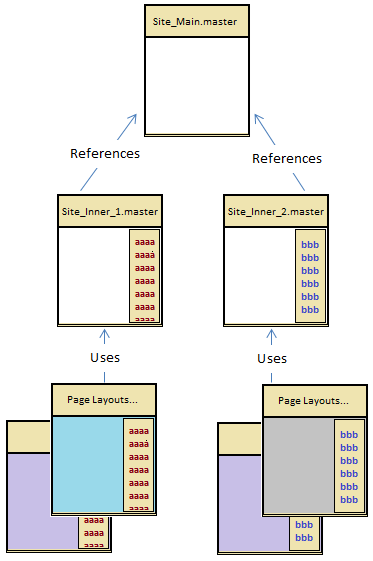
Master page inheritance is useful in SharePoint sites where we need multiple master pages with the same global layout structure. For instance a SharePoint site with all sub-sites having a unique right column for each sib-site can use master page inheritance. Here one option is to copy the entire HTML into all the master pages, but it is not a good option if we want to modify something.

Following example promotes the reuse of the right column content within a site.


Parent Master Page (Site_Main.master)Site_Main.master is the base master page and it represents the main master page area. Site_Main.master contains the header/ footer content and three Content Place Holders for main content.

<%@ Master language="C#" %>
DOCTYPE html PUBLIC "-//W3C//DTD XHTML 1.0 Strict//EN" "http://www.w3.org/TR/xhtml1/DTD/xhtml1-strict.dtd">
<%@ Import Namespace="Microsoft.SharePoint" %>
<%@ Register Tagprefix="SharePoint" Namespace="Microsoft.SharePoint.WebControls" Assembly="Microsoft.SharePoint, Version=14.0.0.0, Culture=neutral, PublicKeyToken=71e9bce111e9429c" %>
<%@ Register Tagprefix="WebPartPages" Namespace="Microsoft.SharePoint.WebPartPages" Assembly="Microsoft.SharePoint, Version=14.0.0.0, Culture=neutral, PublicKeyToken=71e9bce111e9429c" %>
<%@ Register TagPrefix="wssuc" TagName="Welcome" Src="~/_controltemplates/Welcome.ascx" %>
<%@ Register TagPrefix="wssuc" TagName="DesignModeConsole" Src="~/_controltemplates/DesignModeConsole.ascx" %>
<%@ Register TagPrefix="wssuc" TagName="MUISelector" Src="~/_controltemplates/MUISelector.ascx" %>
<%@ Register TagPrefix="PublishingNavigation" Namespace="Microsoft.SharePoint.Publishing.Navigation"
       Assembly="Microsoft.SharePoint.Publishing, Version=14.0.0.0, Culture=neutral, PublicKeyToken=71e9bce111e9429c" %>
<html id="Html1" xmlns="http://www.w3.org/1999/xhtml" lang="<%$Resources:wss,language_value %>" dir="<%$Resources:wss,multipages_direction_dir_value %>" runat="server" __expr-val-dir="ltr">
<head id="Head1" runat="server">....head>
<body>
<form id="Form1" runat="server">
.
.
.
<div>
  <asp:ContentPlaceHolder id="PlaceHolderPageTitleInTitleArea" runat="server" />        
  <asp:ContentPlaceHolder id="PlaceHolderPageDescription" runat="server"/>
  <asp:ContentPlaceHolder id="PlaceHolderMain" runat="server"/>
<div>
.
.
.
<form>
<body>
<html>

Inherited Master Page (Site_Inner_x.master)Site_Inner_x.master represents the subsite master page area for a specific subsite. Subsite specific right hand side content is populated in these master pages. Here the main thing to notice is the MasterPageFile value, which is the actual reference to the base masterpage.

<%@ Master language="C#"  MasterPageFile="~SiteCollection/_catalogs/masterpage/Site_Main.master"%>

<%@ Import Namespace="Microsoft.SharePoint" %>
<%@ Register Tagprefix="SharePointWebControls" Namespace="Microsoft.SharePoint.WebControls" Assembly="Microsoft.SharePoint, Version=12.0.0.0, Culture=neutral, PublicKeyToken=71e9bce111e9429c" %>
<%@ Register Tagprefix="WebPartPages" Namespace="Microsoft.SharePoint.WebPartPages" Assembly="Microsoft.SharePoint, Version=12.0.0.0, Culture=neutral, PublicKeyToken=71e9bce111e9429c" %>
<%@ Register Tagprefix="PublishingWebControls" Namespace="Microsoft.SharePoint.Publishing.WebControls" Assembly="Microsoft.SharePoint.Publishing, Version=12.0.0.0, Culture=neutral, PublicKeyToken=71e9bce111e9429c" %>
<%@ Register Tagprefix="PublishingNavigation" Namespace="Microsoft.SharePoint.Publishing.Navigation" Assembly="Microsoft.SharePoint.Publishing, Version=12.0.0.0, Culture=neutral, PublicKeyToken=71e9bce111e9429c" %>
<%@ Register tagprefix="WebPartPages2" namespace="Microsoft.SharePoint.WebPartPages" assembly="Microsoft.SharePoint, Version=14.0.0.0, Culture=neutral, PublicKeyToken=71e9bce111e9429c" %>

<asp:Content ID="Content1" ContentPlaceholderID="PlaceHolderMain" runat="server">
  <asp:ContentPlaceHolder id="PlaceHolderMain" runat="server"/>
  <asp:ContentPlaceHolder id="RightWebPartArea" runat="server">
    <%--Adding a webpart--%>
    <WebPartPages2:ContentEditorWebPart ID="ContentEditorWebPart2" webpart="true" runat="server" __WebPartId="{BB74483B-C04F-4C48-BDD1-3C6D5F159266}">
      <WebPart xmlns="http://schemas.microsoft.com/WebPart/v2">
        <FrameType>NoneFrameType>
        <PartImageLarge>/_layouts/images/mscontl.gifPartImageLarge>
        <ID>g_47ae1a6a_638e_4874_8a91_e9482c5f63f0ID>
        <ContentLink xmlns="http://schemas.microsoft.com/WebPart/v2/ContentEditor" />
        <Content xmlns="http://schemas.microsoft.com/WebPart/v2/ContentEditor">
          [CDATA[<div class="webpart">
           <h3>Webpart 1 Titleh3>
              <div class="webpart_content">                                                             Webpart 1 content
              div>
              div>]]>
        Content>
        <PartStorage xmlns="http://schemas.microsoft.com/WebPart/v2/ContentEditor" />
       <WebPart>
     <WebPartPages2:ContentEditorWebPart>
    <asp:ContentPlaceHolder>
<asp:Content>

<%--Adding all other place holders in the parent master--%>
<asp:Content runat="server" ID="PlaceHolderPageTitleInTitleAreaContent6" ContentPlaceHolderID="PlaceHolderPageTitleInTitleArea">
  <asp:ContentPlaceHolder id="PlaceHolderPageTitleInTitleArea" runat="server"></asp:ContentPlaceHolder>
<asp:Content>

<asp:Content runat="server" ID="PlaceHolderPageDescriptionContent2" ContentPlaceHolderID="PlaceHolderPageDescription">
  <asp:ContentPlaceHolder id="PlaceHolderPageDescription" runat="server"></asp:ContentPlaceHolder>
<asp:Content>


Page Layouts
PlaceHolderMain, PlaceHolderPageTitleInTitleArea and PlaceHolderPageDescription content areas will be overridden in page layouts. But RightWebPartArea will not be overridden in page layouts.

<%@ Page language="C#"   Inherits="Microsoft.SharePoint.Publishing.PublishingLayoutPage,Microsoft.SharePoint.Publishing,Version=12.0.0.0,Culture=neutral,PublicKeyToken=71e9bce111e9429c" %>
<%@ Register Tagprefix="SharePointWebControls" Namespace="Microsoft.SharePoint.WebControls" Assembly="Microsoft.SharePoint, Version=12.0.0.0, Culture=neutral, PublicKeyToken=71e9bce111e9429c" %>
<%@ Register Tagprefix="WebPartPages" Namespace="Microsoft.SharePoint.WebPartPages" Assembly="Microsoft.SharePoint, Version=12.0.0.0, Culture=neutral, PublicKeyToken=71e9bce111e9429c" %>
<%@ Register Tagprefix="PublishingWebControls" Namespace="Microsoft.SharePoint.Publishing.WebControls" Assembly="Microsoft.SharePoint.Publishing, Version=12.0.0.0, Culture=neutral, PublicKeyToken=71e9bce111e9429c" %>
<%@ Register Tagprefix="PublishingNavigation" Namespace="Microsoft.SharePoint.Publishing.Navigation" Assembly="Microsoft.SharePoint.Publishing, Version=12.0.0.0, Culture=neutral, PublicKeyToken=71e9bce111e9429c" %>

<asp:Content ContentPlaceHolderID="PlaceHolderPageTitleInTitleArea" runat="server">
  <SharePointWebControls:FieldValue id="PlaceHolderTitle" FieldName="Title" runat="server"/>
asp:Content>

<asp:Content ContentPlaceholderID="PlaceHolderPageDescription" runat="server">
  <SharePointWebControls:FieldValue id="PlaceHolderDescription" FieldName="Page Description" runat="server"/>
asp:Content>

<asp:Content ContentPlaceholderID="PlaceHolderMain" runat="server">
  <PublishingWebControls:editmodepanel runat="server" id="editmodepanel1">
    <SharePointWebControls:TextField FieldName="Title" id="txtPageTitle" runat="server">SharePointWebControls:TextField>
    <SharePointWebControls:NoteField FieldName="Page Description" id="txtDescription" DisplaySize="58" Text="" runat="server"/>
  PublishingWebControls:editmodepanel>

  <WebPartPages:webpartzone id="wpz1" runat="server" Visible="true"><ZoneTemplate>ZoneTemplate>WebPartPages:webpartzone>
asp:Content>