Tuesday, February 14, 2012

SharePoint 2010 Master Page Inheritance

Master page inheritance is useful in SharePoint sites where we need multiple master pages with the same global layout structure. For instance a SharePoint site with all sub-sites having a unique right column for each sib-site can use master page inheritance. Here one option is to copy the entire HTML into all the master pages, but it is not a good option if we want to modify something.

Following example promotes the reuse of the right column content within a site.
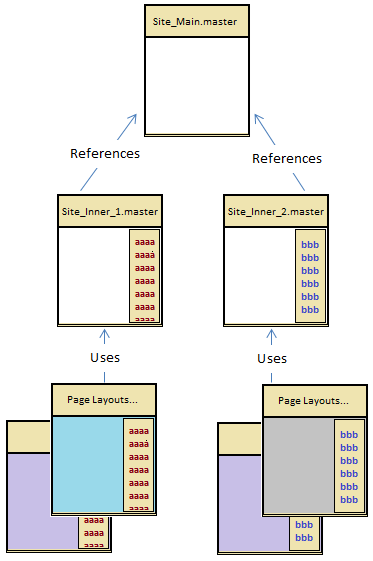


Parent Master Page (Site_Main.master)Site_Main.master is the base master page and it represents the main master page area. Site_Main.master contains the header/ footer content and three Content Place Holders for main content.

<%@ Master language="C#" %>
DOCTYPE html PUBLIC "-//W3C//DTD XHTML 1.0 Strict//EN" "http://www.w3.org/TR/xhtml1/DTD/xhtml1-strict.dtd">
<%@ Import Namespace="Microsoft.SharePoint" %>
<%@ Register Tagprefix="SharePoint" Namespace="Microsoft.SharePoint.WebControls" Assembly="Microsoft.SharePoint, Version=14.0.0.0, Culture=neutral, PublicKeyToken=71e9bce111e9429c" %>
<%@ Register Tagprefix="WebPartPages" Namespace="Microsoft.SharePoint.WebPartPages" Assembly="Microsoft.SharePoint, Version=14.0.0.0, Culture=neutral, PublicKeyToken=71e9bce111e9429c" %>
<%@ Register TagPrefix="wssuc" TagName="Welcome" Src="~/_controltemplates/Welcome.ascx" %>
<%@ Register TagPrefix="wssuc" TagName="DesignModeConsole" Src="~/_controltemplates/DesignModeConsole.ascx" %>
<%@ Register TagPrefix="wssuc" TagName="MUISelector" Src="~/_controltemplates/MUISelector.ascx" %>
<%@ Register TagPrefix="PublishingNavigation" Namespace="Microsoft.SharePoint.Publishing.Navigation"
       Assembly="Microsoft.SharePoint.Publishing, Version=14.0.0.0, Culture=neutral, PublicKeyToken=71e9bce111e9429c" %>
<html id="Html1" xmlns="http://www.w3.org/1999/xhtml" lang="<%$Resources:wss,language_value %>" dir="<%$Resources:wss,multipages_direction_dir_value %>" runat="server" __expr-val-dir="ltr">
<head id="Head1" runat="server">....head>
<body>
<form id="Form1" runat="server">
.
.
.
<div>
  <asp:ContentPlaceHolder id="PlaceHolderPageTitleInTitleArea" runat="server" />        
  <asp:ContentPlaceHolder id="PlaceHolderPageDescription" runat="server"/>
  <asp:ContentPlaceHolder id="PlaceHolderMain" runat="server"/>
<div>
.
.
.
<form>
<body>
<html>

Inherited Master Page (Site_Inner_x.master)Site_Inner_x.master represents the subsite master page area for a specific subsite. Subsite specific right hand side content is populated in these master pages. Here the main thing to notice is the MasterPageFile value, which is the actual reference to the base masterpage.

<%@ Master language="C#"  MasterPageFile="~SiteCollection/_catalogs/masterpage/Site_Main.master"%>

<%@ Import Namespace="Microsoft.SharePoint" %>
<%@ Register Tagprefix="SharePointWebControls" Namespace="Microsoft.SharePoint.WebControls" Assembly="Microsoft.SharePoint, Version=12.0.0.0, Culture=neutral, PublicKeyToken=71e9bce111e9429c" %>
<%@ Register Tagprefix="WebPartPages" Namespace="Microsoft.SharePoint.WebPartPages" Assembly="Microsoft.SharePoint, Version=12.0.0.0, Culture=neutral, PublicKeyToken=71e9bce111e9429c" %>
<%@ Register Tagprefix="PublishingWebControls" Namespace="Microsoft.SharePoint.Publishing.WebControls" Assembly="Microsoft.SharePoint.Publishing, Version=12.0.0.0, Culture=neutral, PublicKeyToken=71e9bce111e9429c" %>
<%@ Register Tagprefix="PublishingNavigation" Namespace="Microsoft.SharePoint.Publishing.Navigation" Assembly="Microsoft.SharePoint.Publishing, Version=12.0.0.0, Culture=neutral, PublicKeyToken=71e9bce111e9429c" %>
<%@ Register tagprefix="WebPartPages2" namespace="Microsoft.SharePoint.WebPartPages" assembly="Microsoft.SharePoint, Version=14.0.0.0, Culture=neutral, PublicKeyToken=71e9bce111e9429c" %>

<asp:Content ID="Content1" ContentPlaceholderID="PlaceHolderMain" runat="server">
  <asp:ContentPlaceHolder id="PlaceHolderMain" runat="server"/>
  <asp:ContentPlaceHolder id="RightWebPartArea" runat="server">
    <%--Adding a webpart--%>
    <WebPartPages2:ContentEditorWebPart ID="ContentEditorWebPart2" webpart="true" runat="server" __WebPartId="{BB74483B-C04F-4C48-BDD1-3C6D5F159266}">
      <WebPart xmlns="http://schemas.microsoft.com/WebPart/v2">
        <FrameType>NoneFrameType>
        <PartImageLarge>/_layouts/images/mscontl.gifPartImageLarge>
        <ID>g_47ae1a6a_638e_4874_8a91_e9482c5f63f0ID>
        <ContentLink xmlns="http://schemas.microsoft.com/WebPart/v2/ContentEditor" />
        <Content xmlns="http://schemas.microsoft.com/WebPart/v2/ContentEditor">
          [CDATA[<div class="webpart">
           <h3>Webpart 1 Titleh3>
              <div class="webpart_content">                                                             Webpart 1 content
              div>
              div>]]>
        Content>
        <PartStorage xmlns="http://schemas.microsoft.com/WebPart/v2/ContentEditor" />
       <WebPart>
     <WebPartPages2:ContentEditorWebPart>
    <asp:ContentPlaceHolder>
<asp:Content>

<%--Adding all other place holders in the parent master--%>
<asp:Content runat="server" ID="PlaceHolderPageTitleInTitleAreaContent6" ContentPlaceHolderID="PlaceHolderPageTitleInTitleArea">
  <asp:ContentPlaceHolder id="PlaceHolderPageTitleInTitleArea" runat="server"></asp:ContentPlaceHolder>
<asp:Content>

<asp:Content runat="server" ID="PlaceHolderPageDescriptionContent2" ContentPlaceHolderID="PlaceHolderPageDescription">
  <asp:ContentPlaceHolder id="PlaceHolderPageDescription" runat="server"></asp:ContentPlaceHolder>
<asp:Content>


Page Layouts
PlaceHolderMain, PlaceHolderPageTitleInTitleArea and PlaceHolderPageDescription content areas will be overridden in page layouts. But RightWebPartArea will not be overridden in page layouts.

<%@ Page language="C#"   Inherits="Microsoft.SharePoint.Publishing.PublishingLayoutPage,Microsoft.SharePoint.Publishing,Version=12.0.0.0,Culture=neutral,PublicKeyToken=71e9bce111e9429c" %>
<%@ Register Tagprefix="SharePointWebControls" Namespace="Microsoft.SharePoint.WebControls" Assembly="Microsoft.SharePoint, Version=12.0.0.0, Culture=neutral, PublicKeyToken=71e9bce111e9429c" %>
<%@ Register Tagprefix="WebPartPages" Namespace="Microsoft.SharePoint.WebPartPages" Assembly="Microsoft.SharePoint, Version=12.0.0.0, Culture=neutral, PublicKeyToken=71e9bce111e9429c" %>
<%@ Register Tagprefix="PublishingWebControls" Namespace="Microsoft.SharePoint.Publishing.WebControls" Assembly="Microsoft.SharePoint.Publishing, Version=12.0.0.0, Culture=neutral, PublicKeyToken=71e9bce111e9429c" %>
<%@ Register Tagprefix="PublishingNavigation" Namespace="Microsoft.SharePoint.Publishing.Navigation" Assembly="Microsoft.SharePoint.Publishing, Version=12.0.0.0, Culture=neutral, PublicKeyToken=71e9bce111e9429c" %>

<asp:Content ContentPlaceHolderID="PlaceHolderPageTitleInTitleArea" runat="server">
  <SharePointWebControls:FieldValue id="PlaceHolderTitle" FieldName="Title" runat="server"/>
asp:Content>

<asp:Content ContentPlaceholderID="PlaceHolderPageDescription" runat="server">
  <SharePointWebControls:FieldValue id="PlaceHolderDescription" FieldName="Page Description" runat="server"/>
asp:Content>

<asp:Content ContentPlaceholderID="PlaceHolderMain" runat="server">
  <PublishingWebControls:editmodepanel runat="server" id="editmodepanel1">
    <SharePointWebControls:TextField FieldName="Title" id="txtPageTitle" runat="server">SharePointWebControls:TextField>
    <SharePointWebControls:NoteField FieldName="Page Description" id="txtDescription" DisplaySize="58" Text="" runat="server"/>
  PublishingWebControls:editmodepanel>

  <WebPartPages:webpartzone id="wpz1" runat="server" Visible="true"><ZoneTemplate>ZoneTemplate>WebPartPages:webpartzone>
asp:Content>

Friday, February 10, 2012

Bulk Insert to a SQL Server Table with SqlBulkCopy

System.Data.SqlClient.SqlBulkCopy class lets us efficiently bulk load a SQL Server table with a significant performance advantage over other methods. Here we can use any data source as long as the data can be loaded to a DataTable instance or read with an IDataReader instance.

How SqlBulkCopy works is it sends large batches of records to the database rather than sending one record at a time. The number of records sent by SqlBulkCopy in each batch can be set by BatchSize property, which is by default zero and send all records to be loaded in one large batch.

When we are dealing with hundreds of thousands of records it is better to use smaller batches. The optimal batch size depends on factors like network bandwidth and the amount of bytes per record. If there is an error then the entire batch is rolled back and the error would cause SqlBulkCopy to stop processing. But any batches complete before the error is committed, meaning that the database may contains some imported data.

SqlBulkCopy class can be used to data insert only.

Example: Destination Table


Create an instance of the SqlBulkCopy class and specify the DB connection and the destination table to import data.

public static void SaveBulk(DataTable dataTable)
{
  SqlConnection connection = null;
  if (dataTable != null)
  {
    try
    {
      using (connection = new SqlConnection(connectionString))
      {
        connection.Open();
        using (SqlBulkCopy bulkCopy = new SqlBulkCopy(connection))
        {
          bulkCopy.ColumnMappings.Add("AccountId", "AccountId");
          bulkCopy.ColumnMappings.Add("ProcessingDate", "ProcessingDate");
          bulkCopy.ColumnMappings.Add("Amount", "Amount");

          bulkCopy.DestinationTableName = "dbo.AccountData";

          bulkCopy.WriteToServer(dataTable);
        }
      }
    }
    catch (Exception ex)
    {
      LoggerService.HandleException(ex);
    }
  }
}

It is not a must to specify column mappings in SqlBulkCopy. If column mappings are not specified, SqlBulkCopy performs the import by mapping the first column of the source data to the first column of the destination table, and so on. It does not perform the mapping by column name. So if the column order is different or we want to do the mapping clearly, we can optionally specify column mappings indicating what columns in the source data are mapped to what columns in the destination table.

Further Performance Improvements 
 
1. Tablelock
By defaults SqlBulkCopy uses row locks during the bulk copy operation. If TableLock option in the SqlBulkCopyOptions is specified, it obtains a bulk update lock for the duration of the bulk copy operation and performance will be improved.

using (SqlBulkCopy bulkCopy = new SqlBulkCopy(connection, SqlBulkCopyOptions.TableLock, null))
{
}

2. Retrieve all data before calling WriteToServer method
In some scenarios it is possible that the import process involves steps as follows:
  1. Retrieve data from a table
  2. Loop and process retrieved data
    1. Within the loop bring additional data based on the current item
    2. At the end of the iteration bulk copy to save all processed data

In this case if we can retrieve all the data required for processing and store in a list, before start the loop (Actually before calling WriteToServer); we can expect consistent performance in the last iterations in the loop as well. Otherwise what will happen is our get queries will get queued and will take longer time to response because of the writing load on the SQL server.

A paper on SqlBulkCopy Performance Analysis, which describes how to reach top performance using the SqlBulkCopy can be found here.

Friday, December 9, 2011

Customize Blog Posts in SharePoint 2010 Blog Site Template


If you are using the out of the box SharePoint blog site and you want to customize the layout of the blog posts, this is how you do it.  This requires you to create a new XSL template file and then connect that file to the blog post.

This example shows how we remove “By” section of the blog post shown in the figure below.


1. Locate the blog.xsl file on your SharePoint server. It is located in:
          C:\Program Files\Common Files\Microsoft Shared\Web Server Extensions\14\TEMPLATE\LAYOUTS\XSL

2. Get a copy of it and rename the copy. (Ex: CustomBlog.xsl). Make sure CustomBlog.xsl is saved in the same directory as blog.xsl.

3. Modify CustomBlog.xsl. You have to find respective statement for the by line and remove it. The statement of my file was:
  <xsl:when test="@Name='Author'">
    <span class="ms-postfootercolor">
      <xsl:value-of select="$thisNode/../@resource.wss.ByPrefix"/>
    span>
    <xsl:text disable-output-escaping="yes" ddwrt:nbsp-preserve="yes">&nbsp;xsl:text>
    <xsl:value-of select="$thisNode/@Author.span" disable-output-escaping="yes" />
  xsl:when>


4. Go to the Blog home page (http://<blog>/default.aspx), then Site Actions –> Edit Page.
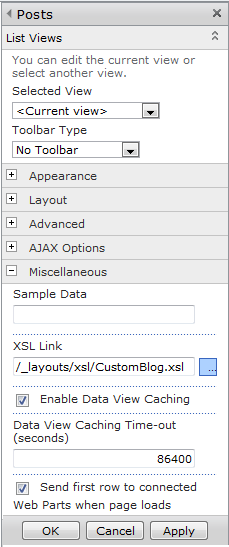
Select Edit Web Part option of the Posts Web Part.


5. Expand “Miscellaneous” section of the edit web part properties window. Specify “/_layouts/xsl/CustomBlog.xsl” as the XSL Link. Save properties.


6. Save changes and refresh the page. You will find “by” section is removed from the blog post as shown in the below figure.


Saturday, November 5, 2011

Find all References to a Master Page or Page Layout in SharePoint

“This item cannot be deleted because it is still referenced by other pages” is a common error we get when we trying to delete a master page or page layout from the “Master pages and page layouts” gallery.
      

One of the ways to find all the references to a file in SharePoint is to use the "Site Content and Structure" page from the Site Actions menu, which is used to manage both the content and structure of the SharePoint site collection.

1. Go to “Site Actions” -> “Site Content and Structure” and select “Master Page Gallery”. 

2. Click on "Show Related Resources" on the toolbar.

3. Select the file you want to find all the references. All the related resources will be listed down with the location.

In addition to find file references, the “Site Content and Structure” page is a great way to copy or move files between libraries on different sites in a site collection. More information on how to work with Site Content and Structure can be found here.


If you are interested in getting all related resources of a file programmatically, we can do it by using BackwardLinks property and ForwardLinks property of SPListItem object.

using (SPSite site = new SPSite("http://prasad"))
{
   using (SPWeb web = site.OpenWeb())
   {
      // Get default.aspx
      SPFile file = web.GetFile("default.aspx");

      // Gets the URLs of all files that link to the current file from the current site collection. Pages that link to the current file from another Web site or site collection are not included in the backward link information.
      foreach (SPLink link in file.BackwardLinks)
      {
         Console.WriteLine(link.Url);
      }

      // Gets the URLs of all the links from the file to other pages, including internal links (to pages in the same Web site), and external links (to pages in other Web sites and site collections on the server).
      foreach (SPLink link in file.ForwardLinks)
      {
         Console.WriteLine(link.Url);
      }
   }
}

This code is not only applicable to Master pages and Page Layouts, but also applicable to Web Parts pages, items in a document libraries, and files in folders, as SPFile class represents a file in a SharePoint Web site that can be a Web Parts page, an item in a document library, or a file in a folder.